Tutorials • cPanel
Changing the cPanel account password
Learn how to change your cPanel account password step by step, using the cPanel interface and password generators for enhanced security.
Views 2231Updated 2 aniPublished on 26/06/2017by Florin P.
Introduction
This tutorial explains the steps necessary to change the password for the cPanel account.
Requirements
- the current authentication data of the cPanel account.
Steps
- We can change the cPanel account password directly from its interface. We will log into the cPanel account using the credentials we have, and then we will go to the "PREFERENCES" section and click on "Password and Security".

- A new page will open, a page where we can change the current account password. We will need the current password in the immediate next field, and then the new password which will need to be entered twice in the fields "New Password" and "New Password (again)" for security reasons.
- We recommend using the password generator for a highly secure password.
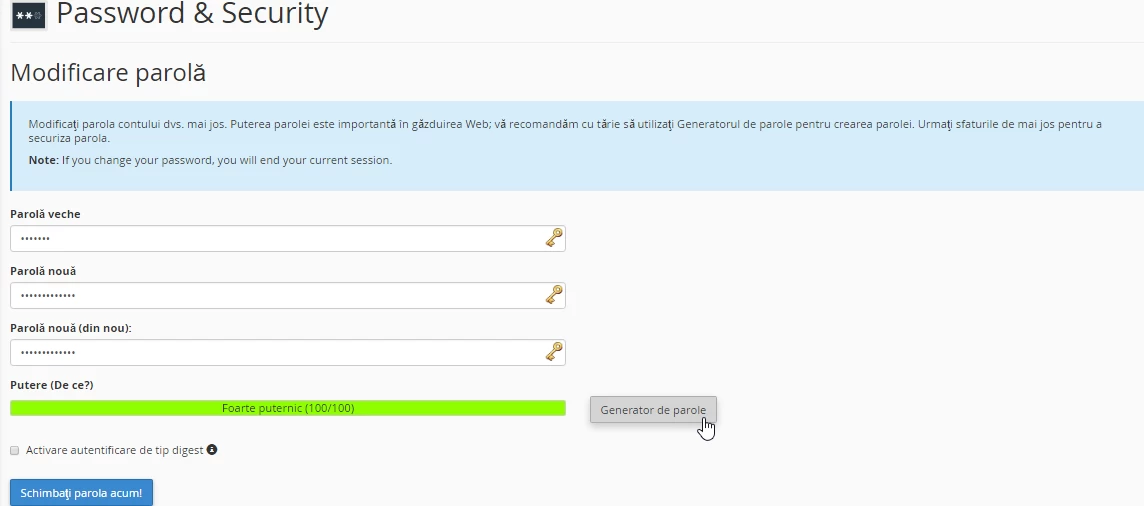
- The completion of this operation will be done by pressing the button "Change password now!