Tutorials • Email
Manual configuration of an email account in Outlook
Learn how to manually set up an email account in Outlook, including the necessary settings for IMAP and SMTP servers, for both SSL and non-SSL connections.
7
Views 5621Updated 1 anPublished on 15/02/2018by Florin P.
Introduction
- In this tutorial, we will show you how to manually set up your email account in the Outlook email client.
Requirements
- Email address and password, Outlook email client, email server settings.
- The email settings are found in the cPanel account under Email accounts, and next to the email account for which we want the settings, click on Set up mail client.
Non-SSL Settings
Username: florin.petran@hostico.com
Password: Use the email account password.
Incoming server: mail.hostico.ro
IMAP Port: 143 POP3 Port: 110
Outgoing server: mail.hostico.ro
SMTP Port: 26
Steps
- Open the Outlook email client, then click on File and then click on Add Account.

- In the window that will open, check Manual setup or additional server types and then click Next> .

- In the next window, we will select POP or IMAP and click Next.

- In the fields below, we will fill in the following information:
User information
- The name of the email account and the email address.
Informații server
- We will select IMAP.
- The email server for both incoming and outgoing is mail.hostico.ro.
Informații de autentificare
- The complete email address florin.petran@hostico.com and its password.
- We will check Remember password.
- We will not check Require logon using Secure Password Authentication (SPA)

- Click on More settings, then click on Outgoing Server where we will check My outgoing server (SMTP) requires authentication and ensure the box Use same settings as my incoming mail server is also checked.

- Click on the next tab Advanced, where we will set port 26 for Outgoing server (SMTP) if the default port 25 is blocked or filtered by the internet provider.
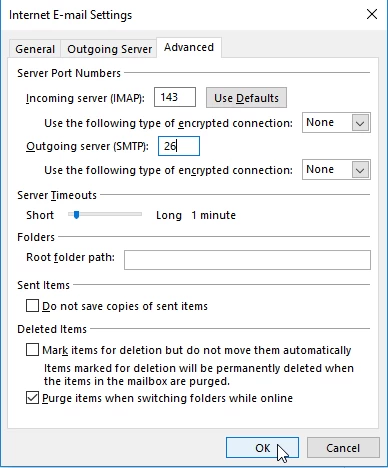
- Click OK and then click Next.
- The settings are to be tested by the email client.

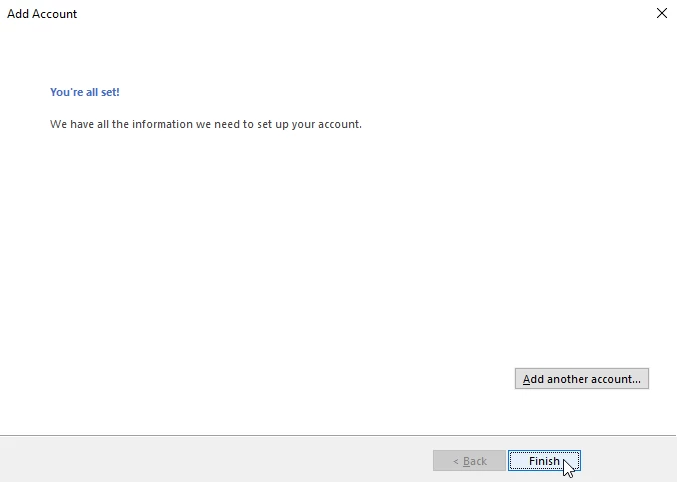
- After the settings have been tested we can close this window and complete the email account setup by clicking on Finish.
- To configure the email account with SSL settings, we will use:
Username: florin.petran@hostico.com
Password: Use the email account password.
Incoming server: hostico.ro
IMAP Port: 993 or POP3 Port: 995
Outgoing server: hostico.ro
SMTP Port: 465
- We will use the above settings in the fields for which we have set the email account using non-SSL settings.