Adding a Subdomain (Vhost) in the ISPConfig control panel.
In this article, we will present the necessary steps to add an additional subdomain in the ISPConfig control panel, which will load from a directory associated with a Website (main domain).
Introduction
- This article will show you how to add a subdomain that will load a website from the root directory of the main domain.
- For example, it can be used for the domain development.hostico.test to load the content of a standalone site from a directory that is in the root directory of the main domain hostico.net.
Requirements
- The ISPConfig panel administration data received on the email associated with the Hostico account when the VPS was activated.
Steps to follow
- First, we will connect to the ISPConfig control panel using one of the access addresses: https://SERVERNAME:10200 or https://IP_SERVER:10200 or https://DOMAIN.XX:10200

In the window that will appear, we select the sites section:

On the left side, we will click on Subdomain (Vhost)
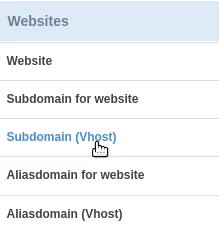
We will click on the Add new Subdomain button

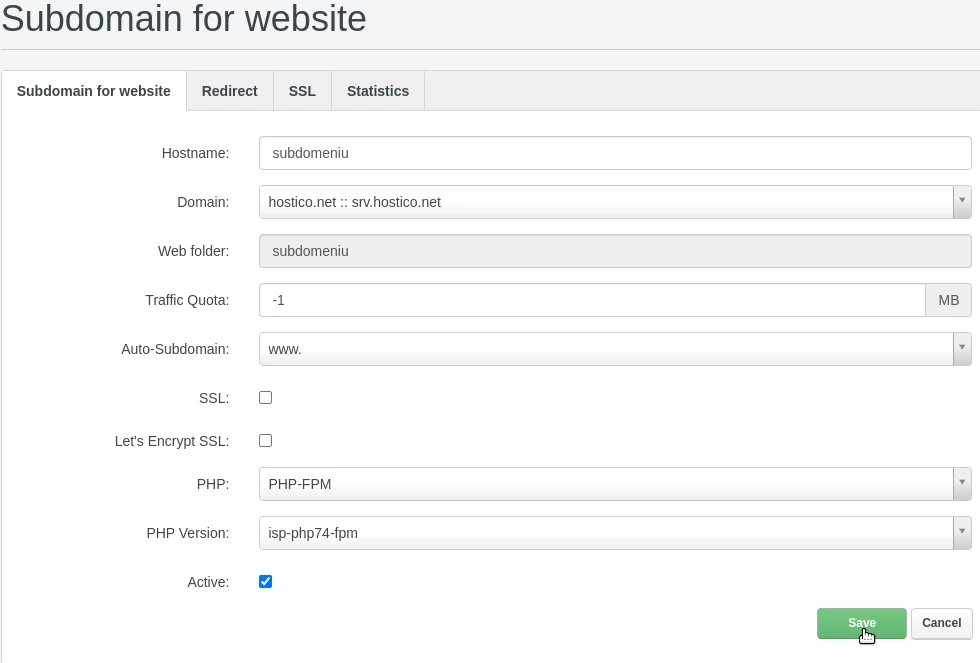
In the respective section, we will complete the fields:
-Hostname: The name of the subdomain, without the main domain;
-Domain: The name of the domain we want to associate the subdomain with;
-Web folder: The name of the directory created on the server from where the subdomain will load;
-Traffic quota: In this field, we can specify the traffic limit associated with the domain if desired. For unlimited traffic, the value -1 will be set;
-Auto Subdomain: In this field, we specify whether or not we want the automatic configuration of a www subdomain;
-SSL: This is checked for the automatic generation of an SSL certificate;
-Let's Encrypt SSL: This is checked for the automatic generation of an SSL certificate;
-PHP: This is left selected as php-fpm;
-PHP Version: The PHP version that will be used by the domain will be selected;
-Active: We leave it checked if we want the domain to be configured and active/accessibile;
To complete the setup, we will click on the Save button at the bottom of the page.