Tutorials • ISPConfig
Changing the password for the admin account in the ISPConfig control panel.
This tutorial explains the steps necessary to change the password for the ISPConfig panel administration account.
Views 1061Updated 2 aniPublished on 21/11/2022by Alexandru R.
Introduction
- The ISPConfig control panel provides the possibility to change the administration account password;
Requirements
- The management data of the ISPConfig panel received in the email box associated with the Hostico account when the VPS was activated;
Steps to follow
- First, we will connect to the ISPConfig control panel using one of the access addresses: https://SERVERNAME:10200 or https://IP_SERVER:10200 or https://DOMAIN.XX:10200
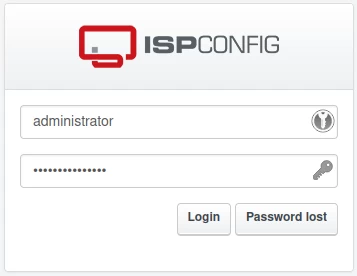
- To change the panel password, we will click on the Tools button in the navigation bar;

- Next, we will click on the User Settings button in the left menu;
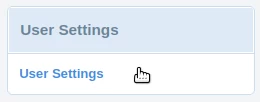
On the page that will load, we will fill in the fields as follows:
-Password and Repeat Password: The password we want to set. We can also use the Generate Password button on the right to generate a random password;
-Language: The language we want set in the panel;
-Design: Leave selected as default;
-Startmodule: The page that we want to be displayed when we log into the panel;
- To save the changes, we will click on the Save button at the bottom of the page.
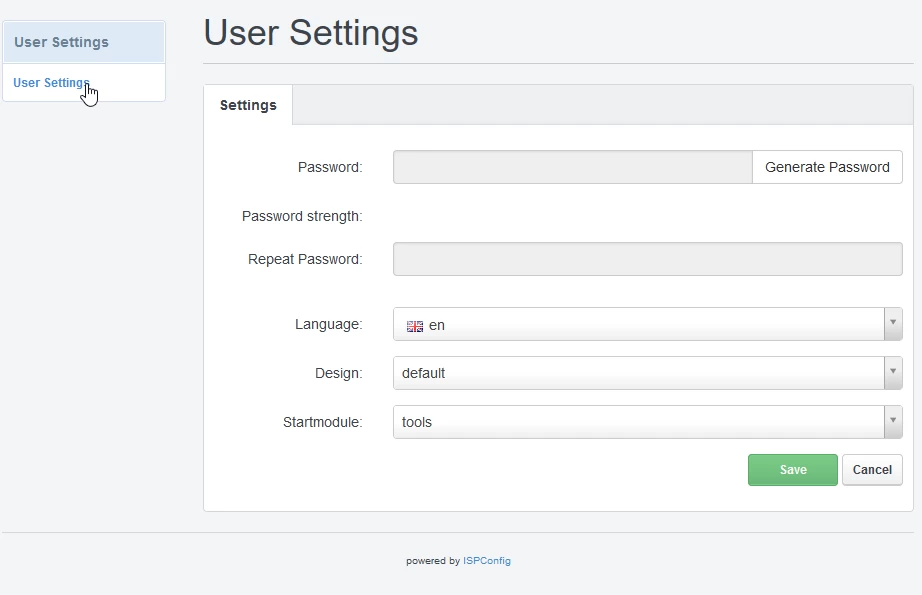
From this point, the panel's administrative password will be reset.