Tutorials • Dev
Installing an SSL certificate through the cPanel interface
Learn how to install an SSL certificate via cPanel. Step-by-step guide for authentication, domain selection, and inserting the necessary files.
Views 1523Updated 2 aniPublished on 16/07/2021by Eduard K.
Introduction
This article will show you how to install an SSL certificate
Requirements
- a cPanel account
- Certificate files with the three specific elements:
- certificate, private-key, ca-bundle, which are usually found in three files with or without extensions, with their specific names, sometimes they are compressed into a single archive (.zip), obtained online from the issuing institution or the company from which you purchased that SSL.
- A simple text editor such as Notepad to open each of the three component files of the SSL, from which all the text will be copied row by row (select all + copy) -> later to be pasted in the fields mentioned in the steps section below.
- Optional - an unarchiving program (usually included in the operating system) - necessary in case the files are sent to you in an archive.
Steps
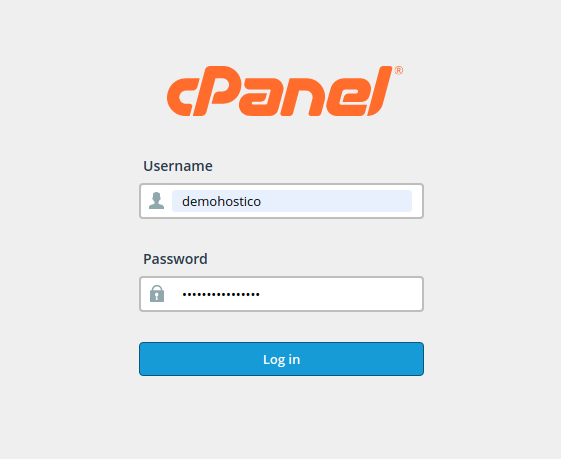
- We will authenticate in the control panel with the related account credentials.
- We select SSL/TLS from the SECURITY menu.

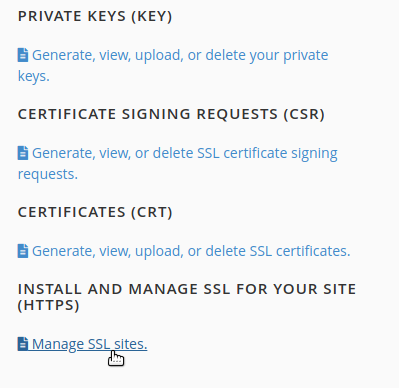
- Select Manage SSL sites from the MENU: Install and Manage SSL for your site (HTTPS)
- We select the domain that we want to install the SSL certificate.

- We copy the 3 parts of the certificate (certificate, private-key, ca-bundle) into the box corresponding to each entry.
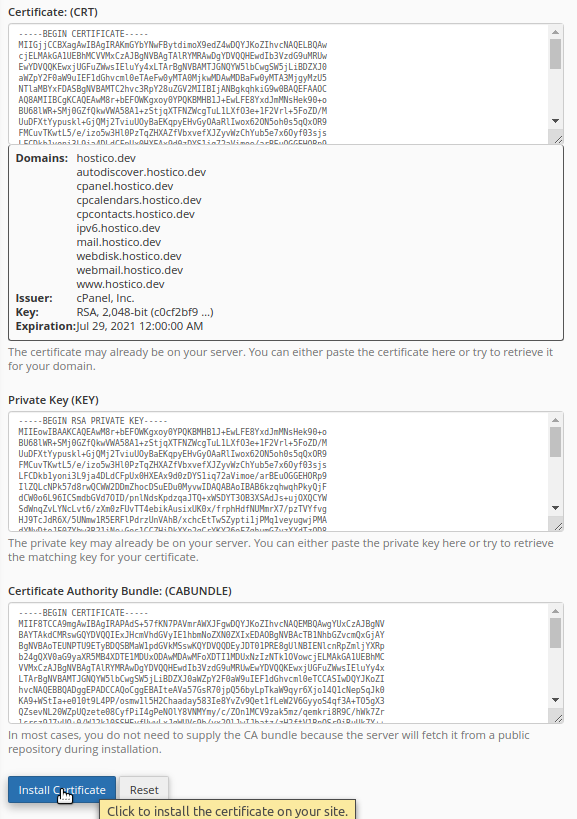
- After the insertion of the 3 specific elements of the SSL certificate, we will press the "install certificate" button
- Attention !!! Copying will be done even with special characters at the beginning and end of the text:
-----BEGIN CERTIFICATE-----
-----END CERTIFICATE-----
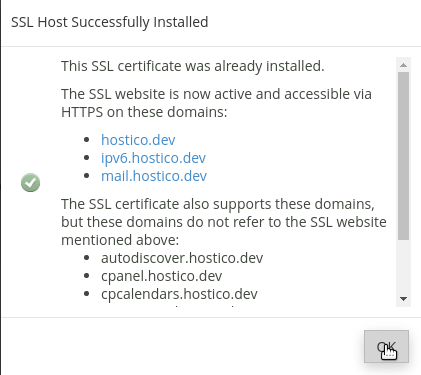
- If the certificate has been successfully installed, we will receive the following confirmation message: