Tutorials • ISPConfig
Adding an email address to the spamfilter whitelist in the ISPConfig control panel.
This tutorial shows you how we can set emails received from a specific email address to never be marked as spam, regardless of their legitimacy.
Views 1209Updated 1 anPublished on 22/11/2022by Alexandru R.
Introduction
- The Whitelist menu in the Spamfilter section of ISPConfig provides the ability to exclude messages received from a specific email address from anti-spam filtering.
- Messages received from the respective address will never be marked as spam.
Requirements
- A VPS with ISPConfig panel;
- Access data for the administration panel.
Steps to follow
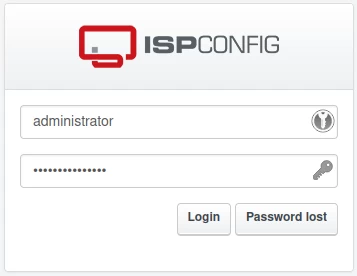
- Log in to the ISPConfig panel using one of the following addresses: https://SERVERNAME:10200, https://SERVER_IP:10200, or https://domain.tld:10200.
- Enter the username and password received via email upon service activation.
To add an email address to the Spamfilter Whitelist:
- Click on the "EMAIL" button in the top navigation bar.

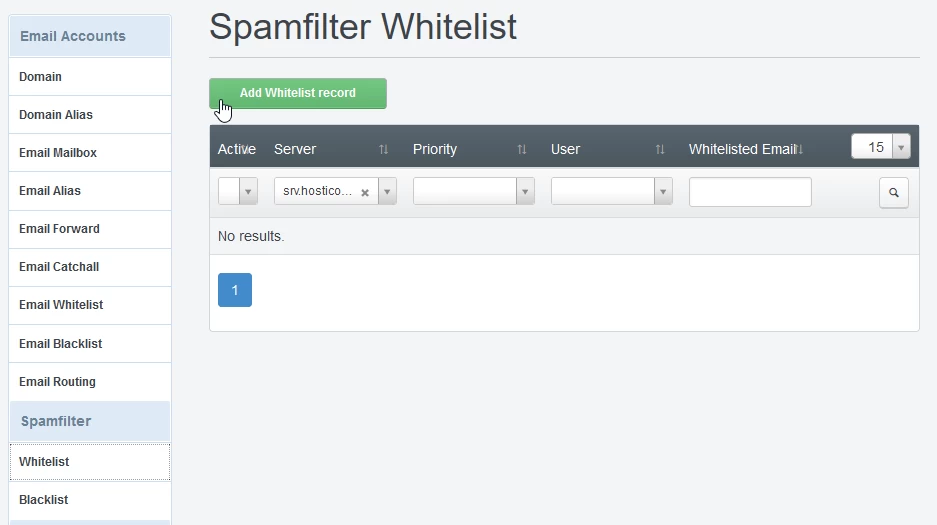
- From the left menu, access the Spamfilter category and select Whitelist.
- To add a new rule, click the green button "Add Whitelist record".
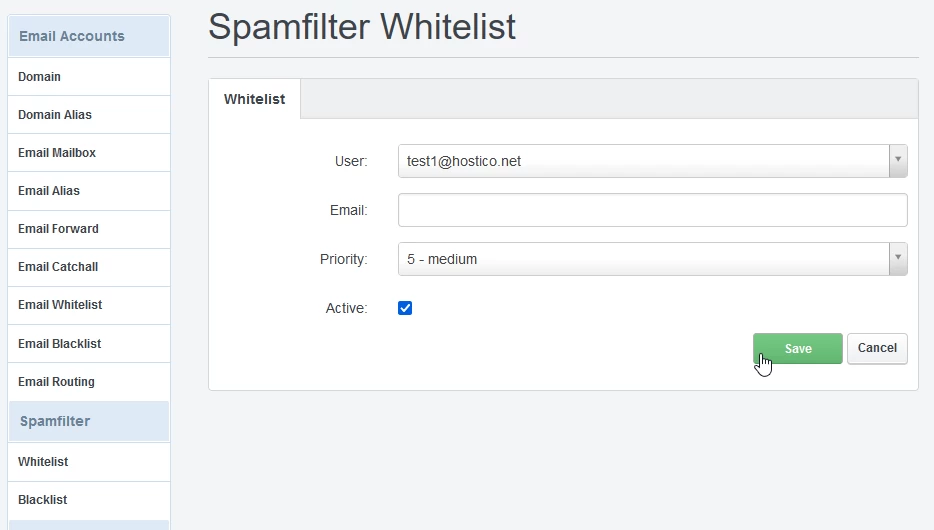
On the page that opens, fill in the fields as follows:
- User: Select the email address to which you want to apply the anti-spam filter.
- Email: Enter the email address you want to add to the Whitelist.
If you want all addresses from a domain to be excluded from filtering, enter the format:@example.com. - Priority: Specify the priority of the rule (10 = highest priority, 1 = lowest priority).
For example:- Blacklist for
@example.comwith priority 5; - Whitelist for
user@example.comwith priority 6;
utilizator@exemplu.comwill not be filtered, while other addresses from the domainexemplu.comwill be filtered. - Blacklist for
- Check the "Active" box to activate the filter.
Press the Save button to save the changes.
After saving, the Whitelist rule will be applied, ensuring that messages from the specified address will no longer be marked as spam.