Saving and restoring files or site settings through the Backup application
Secure your site with the Backup application! Learn how to save and restore files and settings to prevent data loss.
Introduction
• The Backup Interface allows the creation of an archive of the account or, optionally, parts of the site to be saved on the server and later downloaded to the personal computer, thus allowing them to be restored in case something is deleted or unwanted changes have been made.
• Using the Backup and Backup Wizard interface is recommended before any major changes to the site's files or when installing untested plugins or applications that may negatively impact the site's optimal functionality.
Requirements
• Authentication data in cPanel
Steps to follow
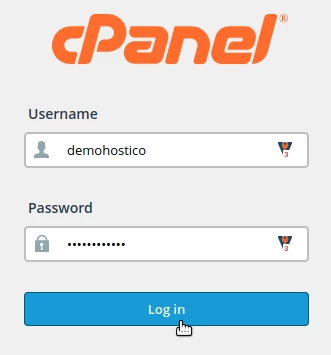
• We will log in to cPanel
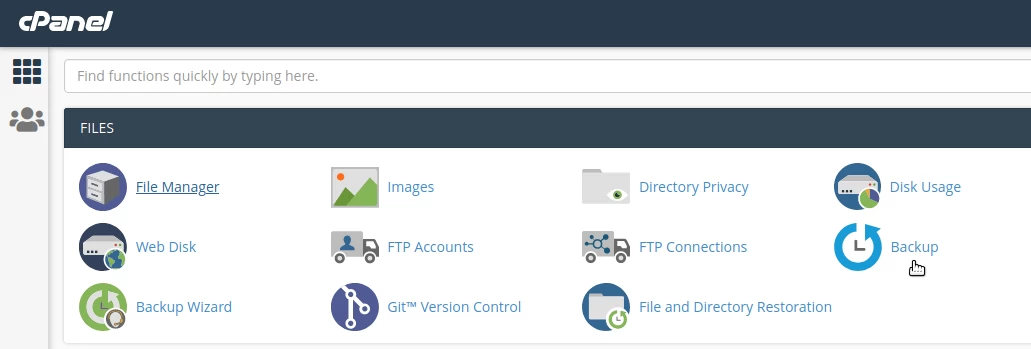
• After logging into the cPanel control panel, in the interface that will be displayed, we look for the "Files" section and there select "Backup"
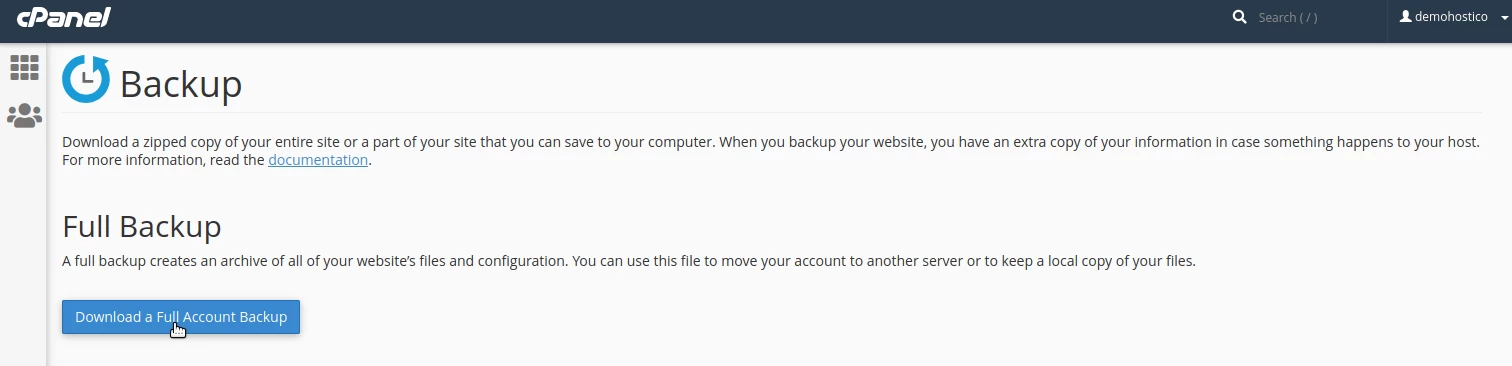
• The Backup interface offers the option to create a complete account archive, including all current settings, or to create separate archives for the site, mail settings, or databases used.
Full Backup
• This option will create an archive with all the files and settings of the account to be saved, but from the cPanel interface, this archive cannot be used for a complete restoration of a site. For a full restoration, you will need to contact us via email at: help@hostico.com
Steps to Follow for Full Backup
• Under the Backup interface, click on Download a Full Account Backup
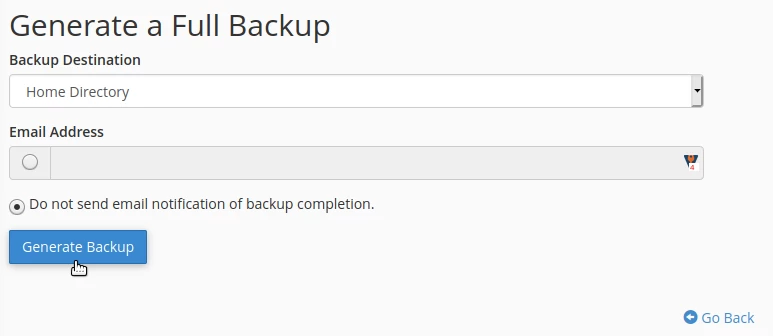
• We will choose the destination where the archive file will be saved.
Home Directory – The archive will be saved on the server with the option to be later downloaded to the personal computer.
FTP and SCP Options – The archive can be saved on other servers through a file transfer protocol of choice.
We enter an email address to receive a notification message, or we can choose not to receive the message.
• Click on Generate Backup
After completing the backup process, the archive file will be visible on the Full Backup page, under Backups Available for Download, from where it can be downloaded to your personal computer.
We will also have access to this file from the File Manager interface under cPanel.
Backup-uri parțiale
Partial backup options are used to create, save, and restore:
• the site's home files
• databases
• email settings for Forwarders
• email settings for Filters
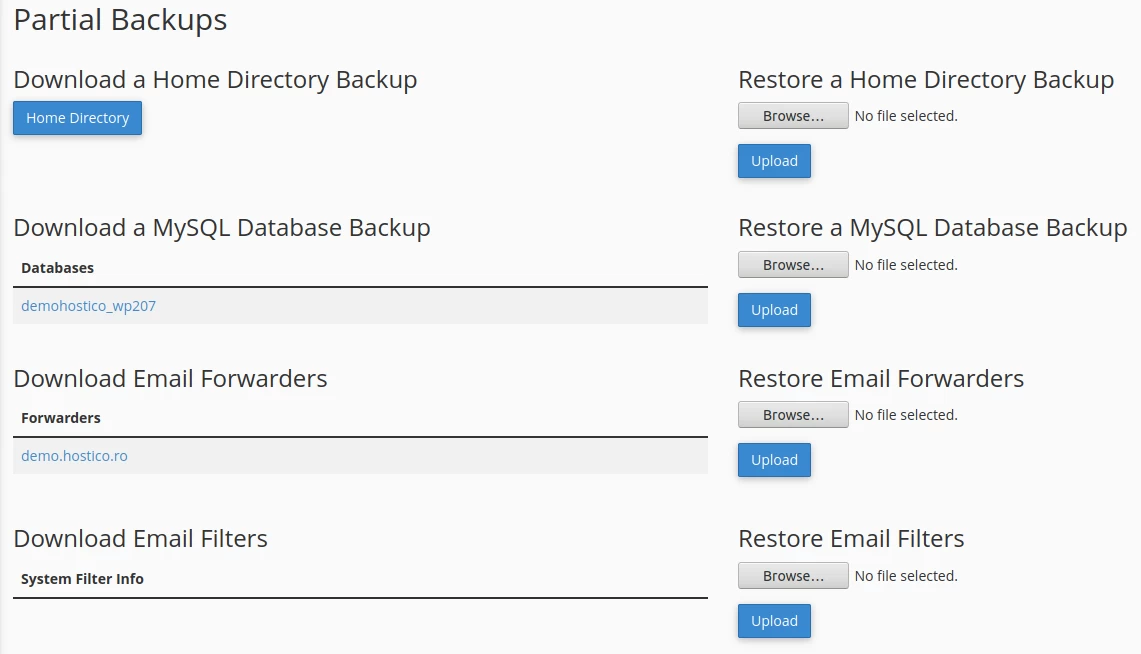
To download, we will select the desired file and save it on the personal computer.
To restore the archive file – we will click on browse, where we will search for the archive file and then click on upload.